
How to Recover WhatsApp Chat Without Backup in 2025?
- Aditi Verma
- Aug 13, 2025
- 21 min read

Updated: Oct 25, 2025

Table of Content
Key Takeaways
Recovery without backup is possible but not guaranteed.
Local backups help restore recent Android chats.
Google Drive and iCloud backups simplify recovery.
Third-party tools can retrieve deleted messages.
Reinstalling WhatsApp works only with a backup.
Regular backups prevent data loss.
WA Chat Backup extension lets you easily back up and export WhatsApp chats.
Introduction
Losing important conversations can be frustrating, especially when there’s no backup available. If you need to recover WhatsApp chat without backup, there are still ways to recover deleted WhatsApp messages without backup and restore chats you thought were gone forever. Whether you want to recover deleted WhatsApp messages without backup on Android or iPhone, retrieve deleted WhatsApp chat, or perform WhatsApp data recovery without backup, this guide will show you how to recover deleted WhatsApp chats easily. Learn how to restore deleted WhatsApp messages without backup, recover permanently deleted WhatsApp messages, and explore the best WhatsApp chat recovery methods to get your messages back quickly and safely.
Recovering a WhatsApp chat without backup can be challenging, but there are still a few effective ways to recover deleted WhatsApp messages without backup on Android or iPhone. You can try restoring from a local database stored on your Android device by going to Internal Storage > Android > media > com.whatsapp > WhatsApp > Databases and selecting an older file. To use this method, uninstall WhatsApp, reinstall it, verify your phone number, and then tap “Restore” when prompted. If no local files are available, you can use trusted WhatsApp data recovery tools designed to recover permanently deleted WhatsApp messages or perform WhatsApp chat recovery without backup. However, when using third-party recovery apps, always proceed with caution as results may vary.
Are Deleted WhatsApp Chats Permanently Deleted?
Deleted WhatsApp chats are not always gone forever. If you have a backup on Google Drive (Android) or iCloud (iPhone), you can recover deleted WhatsApp messages without backup, restore deleted WhatsApp messages without backup, recover WhatsApp chat without backup, retrieve deleted WhatsApp chat, or how to recover deleted WhatsApp chat by reinstalling WhatsApp and tapping Restore during setup.
Without a backup, deleted chats are generally unrecoverable using official methods. However, WhatsApp data recovery, WhatsApp chat recovery, or third-party tools may allow you to recover permanently deleted WhatsApp messages, how to restore deleted WhatsApp messages without backup, or how to recover WhatsApp chat without backup on iPhone or Android. Acting quickly increases the chances of successful recovery, as overwritten data cannot be restored.
How to Recover WhatsApp Chat Without Backup in Android?
To recover WhatsApp chat without backup in Android, you can use trusted recovery methods and specialized WhatsApp data recovery tools to recover deleted WhatsApp messages without backup. These solutions make it possible to restore deleted WhatsApp chats, retrieve lost messages, and recover WhatsApp data without backup, including media and important conversations, even if no previous WhatsApp backup was created.
Method 1: Restore Deleted WhatsApp Messages without Backup via Local Database
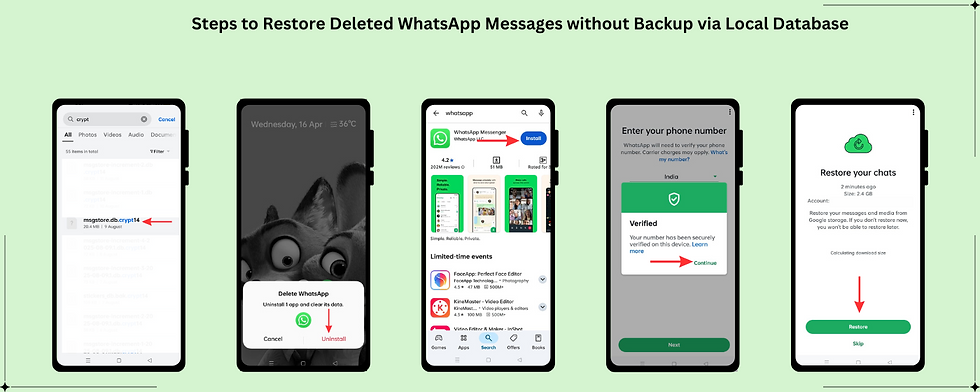
Step 1: Locate the local backup
Open a file manager and go to /sdcard/WhatsApp/Databases. If you don’t use an SD card, check Internal Storage > WhatsApp > Databases.
Step 2: Rename the backup file
Choose the backup you want and rename msgstore-YYYY-MM-DD.1.db.crypt14 to msgstore.db.crypt14.
Step 3: Uninstall WhatsApp
Remove the app from your phone.
Step 4: Reinstall WhatsApp
Download WhatsApp from Google Play and install it.
Step 5: Verify and restore
Open WhatsApp, verify your number, and when prompted, tap Restore to load chats from the local file.
Step 6: Finish setup
Complete the on-screen setup to access your recovered chats.
Pros of Local Database Recovery
Works offline and is free
Quick if a recent local file exists
Cons of Local Database Recovery
Only keeps about 7 days of backups
Won’t help if no local backup is present
Method 2: Recover Deleted WhatsApp Messages on Android using Google Drive
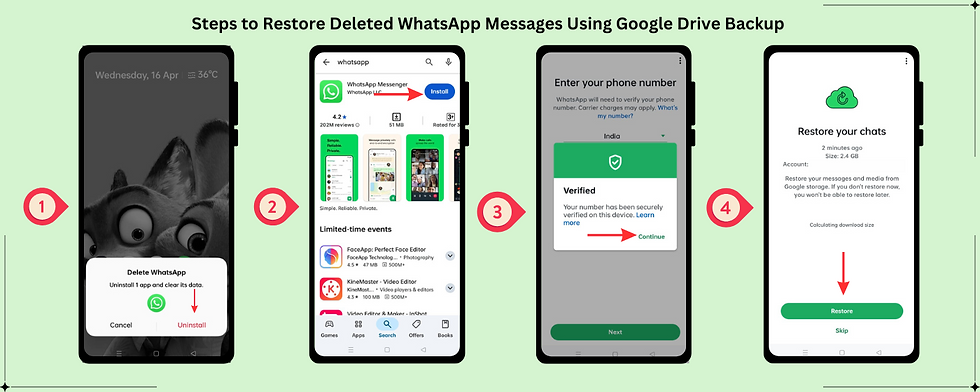
Step 1: Confirm a Drive backup exists
In WhatsApp, go to Settings > Chats > Chat backup and ensure a recent Google Drive backup.
Step 2: Uninstall WhatsApp
Remove the app from your phone.
Step 3: Reinstall and verify
Install WhatsApp from Google Play and verify your phone number.
Step 4: Restore from Drive
When prompted, tap Restore to bring back chats and media from Google Drive.
Pros of Google Drive Recovery
Restores messages and media from the cloud
No manual file handling
Cons of Google Drive Recovery
Requires a prior Drive backup
Must use the same phone number and Google account
Method 3: Recover Deleted WhatsApp Messages without Backup using a Third-Party Recovery App
Step 1: Install a trusted recovery tool
Download a reputable data recovery program like MobileTrans or PhoneRescue onto your PC or Mac.
Step 2: Connect your Android device
Attach your phone via USB and launch the software.
Step 3: Select WhatsApp recovery mode
Choose the option to scan and recover WhatsApp data.
Step 4: Scan your device
Let the tool analyse your phone to find deleted chats.
Step 5: Preview recoverable messages
Check the recovered chat list and select the ones you want.
Step 6: Restore to phone or export to computer
Save your recovered chats directly to your device or export them for backup.
Pros Third-Party Recovery Apps
Can recover messages deleted months ago
Selective recovery available
Supports most Android models
Cons Third-Party Recovery Apps
Requires a computer connection
Full recovery features usually paid
How to Recover Deleted WhatsApp Messages without Backup on iPhone?
If you’ve accidentally lost your WhatsApp messages and don’t have an iCloud or iTunes backup, you might think recovery is impossible. While WhatsApp doesn’t provide a built-in option to recover deleted WhatsApp messages without backup on iPhone, you can still try WhatsApp data recovery without backup using trusted third-party tools. These iPhone WhatsApp chat recovery tools can scan your device’s internal storage to recover deleted WhatsApp messages, restore lost chats, and retrieve media files or call logs, even when no previous backup exists.
Step 1: Choose a Trusted WhatsApp Recovery Tool
Select a reputable third-party iPhone data recovery tool like iMyFone D-Back, Tenorshare UltData, or Dr.Fone – Data Recovery (iOS). Ensure it specifically supports recover deleted WhatsApp messages without backup on iPhone.
Step 2: Install the Software on Your Computer
Download and install the tool on your Mac or Windows PC. Most solutions offer a free trial to preview recoverable messages.
Step 3: Connect Your iPhone
Use a USB cable to connect your iPhone to the computer and allow any permission prompts to ensure the tool can access device data.
Step 4: Scan for Deleted WhatsApp Messages
Launch the recovery software, choose Recover WhatsApp Data, and let it scan your device’s internal storage. The scan will identify recoverable messages, photos, and attachments.
Step 5: Preview and Recover
Select the messages you want to restore and click Recover to Computer or Restore to Device, depending on the tool’s options.
Pros of Using a Third-Party Tool
Works even without iCloud or iTunes backup.
Can recover chats, images, videos, and documents.
Allows selective recovery instead of restoring everything.
Many tools offer a free preview before payment.
Cons of Using a Third-Party Tool
Paid software is usually required for full recovery.
Success rate depends on how long ago the data was deleted.
Requires a computer to run the recovery process.
Does Uninstalling and Reinstalling WhatsApp Recover Deleted Messages?
Uninstalling and reinstalling WhatsApp can help recover deleted WhatsApp messages if you have a backup on Google Drive (Android), iCloud (iPhone), or a local backup on your device. Knowing how to recover WhatsApp chat without backup and how to restore deleted WhatsApp messages without backup ensures you can safely retrieve your conversations and media.
Step 1: Uninstall WhatsApp
Remove WhatsApp from your Android or iPhone device.
Step 2: Reinstall WhatsApp
Download and install WhatsApp again from the Google Play Store or App Store.
Step 3: Open WhatsApp and Verify Your Number
Open the app and verify your phone number using the same account previously linked.
Step 4: Restore Chats
When prompted, tap Restore to recover your messages and media from Google Drive, iCloud, or local backup.
Step 5: Complete Setup
After the restore is complete, finish the setup process to access all recovered chats.
Note: If no backup exists, uninstalling and reinstalling WhatsApp will not recover deleted messages. In that case, using third-party WhatsApp data recovery tools may be necessary.
How to Check if You Have a WhatsApp Backup?
Before you try to recover deleted WhatsApp messages without backup or restore deleted WhatsApp messages without backup, it is important to check if a backup exists. Knowing your last backup date helps you decide how to recover WhatsApp chat without backup and how to retrieve deleted WhatsApp chat effectively. This ensures you don’t lose messages during the recovery process.
On Android (Google Drive Backup)
Open WhatsApp and go to Settings > Chats > Chat Backup.
Check the Last backup date and confirm your Google account is linked.
This shows whether you can restore your chats or need to try methods to recover deleted WhatsApp messages without backup on Android.
On iPhone (iCloud Backup)
Open WhatsApp and go to Settings > Chats > Chat Backup.
Check the Last Backup date on iCloud.
Knowing this helps you determine how to recover deleted WhatsApp messages without backup on iPhone or restore your chats from iCloud.
How to Restore Deleted WhatsApp Messages of One Contact?
If you accidentally deleted important chats from one contact, you can still recover deleted WhatsApp messages using a backup. This method helps you recover WhatsApp chat without backup alternatives by restoring deleted WhatsApp messages of one contact and retrieving your lost conversation quickly. Whether you’re trying to recover deleted WhatsApp messages without backup on Android or iPhone, this simple WhatsApp chat recovery process can bring your messages back in just a few steps.
Step 1: Remove WhatsApp from Your Phone
Uninstall WhatsApp to begin the process of recovering WhatsApp chat history.
Step 2: Reinstall WhatsApp and Confirm Your Number
Download WhatsApp again from the Google Play Store or Apple App Store, then verify your phone number to continue.
Step 3: Restore Deleted WhatsApp Messages from Backup
When asked, tap Restore to recover your messages from Google Drive or iCloud backup.
Step 4: Access the Contact’s Chat Window
Once the recovery is complete, open the chat of the specific contact to check if the deleted messages have been restored.
Step 5: Review and Save Your Restored Messages
Scroll through the conversation to view, save, or back up the recovered messages for future safety.
Bonus Tip: Back Up WhatsApp Chats using WA Chat Backup Extension
Step 1: Open WhatsApp Web & Launch WA Chat Backup
Log in to WhatsApp Web using the QR code. Search for wa-chat-backup.com. Click the Install for Free Button. Once installed, pin the extension.

Step 2: Start using WA Chat Backup Tool
Open WhatsApp Web, tap on the Extension icon. In the Home Section of Tool,
you’ll see the dropdown labeled “Backup up based on:”
Select your preferred option: 1] Count of messages. 2] Date range.
Option A: Backup by Message Count

Choose “Count of messages” from the dropdown.
Enter how many messages to back up (e.g., 8, 10, etc.).
Free users: Backup up to 10 recent messages
Premium users: Backup unlimited messages
Option B: Backup by Date Range

Choose “Count of messages” from the dropdown.
Enter how many messages to back up (e.g., 8, 10, etc.).
Free users: Backup up to 10 recent messages
Premium users: Backup unlimited messages
Step 3: Download Your Chat File
Once backup is complete, you’ll see a confirmation screen: “Click on the button to download the recent 1 chat messages…” Click Download Chats Your chats can be downloaded in 4 formats. Click on the downloaded ZIP file to open your WhatsApp chat backup.


Step 4: View Your Chats in Different File Formats
Each export format presents your data in a unique way:
Excel – Best for sorting, filtering, and organizing chats in columns
JSON – Developer-friendly structure, ideal for automation or integration
HTML – Opens in browser like a chat viewer with clean formatting
CSV – Lightweight format great for importing into tools or apps


Conclusion
Recovering WhatsApp chat without backup can be difficult, but with the right methods, you can still recover deleted WhatsApp messages without backup, restore lost conversations, and retrieve old WhatsApp chats on both Android and iPhone. By following the steps above, you can perform WhatsApp data recovery without backup using manual options or trusted recovery tools. These solutions help you restore deleted WhatsApp messages without backup, recover permanently deleted WhatsApp messages, and bring back important chats, media, and call logs. To improve your chances of success, try to recover WhatsApp chat without backup as soon as possible before new data overwrites the deleted messages.
In addition to these methods, it’s recommended to regularly create WhatsApp backups to avoid data loss in the future. Using tools designed for WhatsApp chat recovery can also make the process easier and safer. Whether you’re trying to recover deleted WhatsApp messages without backup on Android or iPhone, these tools can help scan your device storage, find hidden chat data, and restore WhatsApp messages efficiently. Maintaining regular backups ensures you never have to worry about losing valuable conversations again and makes future WhatsApp data recovery much faster and more reliable.
FAQ's
How to recover deleted WhatsApp messages without backup on Android or iPhone?
Recovering deleted WhatsApp messages without backup can be difficult, but it is possible if you use the right tools. Whether you need to recover WhatsApp chat without backup on Android or iPhone, third-party WhatsApp data recovery software can scan your device’s internal storage to retrieve deleted chats, photos, and call history. For Android, tools like UltData WhatsApp Recovery or Stella Data Recovery can help recover deleted WhatsApp messages without backup, while iPhone users can rely on Tenorshare UltData or iMyFone ChatsBack to restore lost messages without iCloud or iTunes. Acting quickly improves the chances of success, as deleted data can be overwritten by new files.
Method 1: Reinstall WhatsApp to Recover Chats from Local Backup (Android Only)
If you want to recover WhatsApp chat without backup on Android, this method can help as long as your local database hasn’t been cleared.
Open your file manager – Use a file manager app like Google Files and navigate to Internal Storage > Android > media > com.whatsapp > WhatsApp > Databases.
Find the local backup file – Look for a file named msgstore.db.crypt14 (the number may differ). This file contains your local WhatsApp chat data.
Rename the backup file – Change the file name to something like msgstore-backup.db.crypt14 to make it easily recognizable.
Uninstall WhatsApp – Remove WhatsApp from your Android device completely.
Reinstall WhatsApp – Download WhatsApp again from the Google Play Store.
Verify your phone number – Open WhatsApp and verify your registered number.
Restore your chats – When prompted, tap Restore to recover deleted WhatsApp messages and restore your chat history from the local backup.
This method allows you to perform WhatsApp data recovery without backup using the phone’s internal storage.
Method 2: Use a Third-Party WhatsApp Data Recovery Tool
If the local database is missing or outdated, you can try a third-party tool to recover deleted WhatsApp messages without backup on Android or iPhone. Keep in mind that success depends on how much time has passed and whether your deleted data has been overwritten.
Choose a trusted recovery tool – Select a reliable WhatsApp recovery software like Dr.Fone, iMobie, or Tenorshare for WhatsApp chat recovery.
Install the software on your PC – Download and install the recovery program on your computer.
Connect your device – Attach your Android or iPhone to the PC. Android users may need to enable USB debugging.
Scan for deleted WhatsApp messages – Run the software to scan your phone’s internal memory or any stored backups for recoverable chats.
Preview recoverable messages – Review the results to check if your deleted WhatsApp chats appear in the list.
Recover and restore chats – Follow the on-screen instructions to recover WhatsApp chat without backup. Note that some tools may require a paid license to complete the full recovery.
Using professional WhatsApp data recovery software can help retrieve deleted chats, media files, and attachments even when no backup exists.
Can I restore old WhatsApp chats if I skipped the restore option?
Yes, it is possible to restore old WhatsApp chats even if you skipped the restore option during setup. One method to recover WhatsApp chat without backup is by uninstalling and reinstalling WhatsApp, which will prompt you to restore messages from your existing backup. To successfully recover deleted WhatsApp messages without backup or avoid losing older chats, ensure you reinstall the app within 7 days, as older backups may be overwritten. Tools like iToolab and other WhatsApp data recovery solutions can also help retrieve conversations on both Android and iPhone.
To recover WhatsApp chat without backup or from an existing backup, follow these steps:
Uninstall WhatsApp – Remove the app completely from your phone to prepare for restoration.
Reinstall WhatsApp – Download and install the latest version from your device’s app store.
Set up WhatsApp – Open the app and complete the initial setup, including verifying your phone number.
Restore your chats – When prompted, tap Restore to recover deleted WhatsApp messages or restore chats from the available backup.
Check for backup if needed – If no restore prompt appears, it may mean there is no backup. On Android, check Google Drive, and on iPhone, check iCloud for available WhatsApp backups.
Complete setup – After restoration, finish setting up your profile and you can continue using WhatsApp with your recovered chats.
This method helps you recover deleted WhatsApp messages, restore WhatsApp chat without backup when possible, and perform WhatsApp data recovery from local or cloud backups efficiently.
How to recover WhatsApp chat history from Google Drive backup?
To restore WhatsApp chat history from a Google Drive backup, uninstall and reinstall WhatsApp on your device. After verifying your phone number, the app will automatically detect the backup and prompt you to restore it. This method is useful if you want to recover WhatsApp chat without backup from your phone storage but have a Google Drive copy available. Simply tap Restore to get your chats and media back. If you’re trying to recover WhatsApp chat without backup at all, consider using third-party WhatsApp recovery tools for Android and iPhone.
To recover deleted WhatsApp messages without backup on Android using Google Drive, follow these steps:
Uninstall and reinstall WhatsApp – If you’re setting up a new device or need to trigger the restore option, uninstall WhatsApp and then reinstall it from the Google Play Store.
Verify your phone number – Open WhatsApp and complete the initial setup by verifying your registered phone number.
Restore from Google Drive – When prompted, tap Restore to recover WhatsApp chat without backup using your Google Drive backup. Your deleted messages, chats, and media will begin restoring automatically.
Complete the setup – After restoration, tap Next to access your recovered messages. Media files will continue downloading in the background so you can start using WhatsApp immediately.
This method allows you to recover deleted WhatsApp messages without backup efficiently on Android while ensuring your chats and media are safely restored from Google Drive.
How to restore WhatsApp messages on a new phone without losing data?
To restore WhatsApp messages on a new phone without losing data, start by backing up your chats from the old phone to Google Drive (Android) or iCloud (iOS). Then install WhatsApp on the new phone, verify your number, and restore the backup. If you don’t have a backup available and need to recover WhatsApp chat without backup, you can try advanced data recovery tools to transfer messages. These methods help you safely move your chat history and recover WhatsApp chat without backup even when switching devices.
On Your Old Phone:
Open WhatsApp – Tap the three dots on Android or go to Settings on iPhone.
Access Chat Backup – Navigate to Settings > Chats > Chat Backup.
Create a backup – Tap Back Up to save your chats and media to the cloud. Make sure to select your Google account on Android or iCloud account on iPhone.
On Your New Phone:
Install WhatsApp – Download and install WhatsApp from the App Store or Google Play Store.
Open WhatsApp and accept terms – Launch the app and agree to the terms and conditions.
Verify your number – Use the same phone number you had on your old device.
Restore your chats – When WhatsApp detects a backup, tap Restore to recover WhatsApp chat without backup, restore deleted WhatsApp messages, and recover your media files.
Complete the setup – After restoration is finished, tap Next to finish setting up your profile and start using WhatsApp with all your recovered chats.
This process helps you recover deleted WhatsApp messages, perform WhatsApp chat recovery, and ensure all future messages are safely backed up for easy restoration.
Is it possible to recover permanently deleted WhatsApp messages?
No, you generally cannot recover permanently deleted WhatsApp messages because WhatsApp does not store them on its servers. Once deleted, they are removed from your device’s local storage as well. However, if you have a Google Drive or iCloud backup from before the deletion, you can restore your chat history to get them back. In cases where no backup exists, some professional data recovery tools may still help you recover permanently deleted WhatsApp messages from your phone’s storage.
To recover WhatsApp chat without backup or restore from an existing backup, follow these steps:
Uninstall and reinstall WhatsApp – Remove WhatsApp from your device, then download and install it again from the Google Play Store or Apple App Store.
Verify your phone number – Open WhatsApp and confirm your registered number to proceed with setup.
Restore your chats – When prompted, tap Restore to recover deleted WhatsApp messages, restore WhatsApp chat without backup, and retrieve your media files from the backup.
Complete the setup – After restoration is finished, tap Next to finish setting up your profile and access all recovered chats.
This method allows you to recover deleted WhatsApp messages, perform WhatsApp chat recovery, and restore your chats and media efficiently from a previous backup.
How to restore deleted WhatsApp messages of one contact only?
To restore deleted WhatsApp messages from a specific contact, you must restore your entire chat history from a backup. WhatsApp does not allow selectively recovering messages from only one contact. This process will replace your current chats with the older backup, meaning you will lose any new messages sent or received after that backup date. The only way to restore deleted WhatsApp messages from a specific contact without losing recent chats is by using third-party WhatsApp data recovery tools that can extract and recover targeted messages.
Method 1: Restore WhatsApp Chats from a Cloud Backup
This method allows you to recover WhatsApp chat without backup or restore all messages to the state of your last cloud backup.
Check for an existing backup – Make sure you have a recent Google Drive backup for Android or iCloud backup for iPhone. You can verify this in WhatsApp Settings > Chats > Chat Backup.
Uninstall WhatsApp – Remove the app from your device.
Reinstall WhatsApp – Download and install WhatsApp again from the Google Play Store or Apple App Store.
Restore your chats – Open WhatsApp, verify your phone number, and when prompted, tap Restore to recover deleted WhatsApp messages or restore WhatsApp chat without backup using the cloud backup.
Method 2: Use a Third-Party Recovery Tool for Selective Chats
If you want to recover deleted WhatsApp messages from a specific contact without restoring all chats, a third-party WhatsApp recovery tool can help.
Choose a reliable recovery tool – Use reputable software such as Wondershare MobileTrans, Dr.Fone, or Tenorshare UltData.
Install the software on your computer – Download and set up the program on your PC or Mac.
Connect your phone – Link your Android or iPhone to the computer via USB.
Scan and recover chats – Use the software to scan your device for deleted WhatsApp messages and select the conversations from specific contacts you wish to restore. This allows you to recover WhatsApp chat without backup selectively.
Method 3: Ask the Other Person for the Chat
If the messages were deleted on your side but still exist on the other person’s phone, the easiest way to recover deleted WhatsApp messages is to request the chat directly.
Contact the person – Reach out to the contact whose messages you need.
Request the chat history – Ask them to forward the conversation or export the chat and send it to you. This method helps you retrieve deleted WhatsApp chat without backup quickly when the messages are still available on the other side.
How to retrieve deleted WhatsApp messages on Android without backup?
If you’re wondering how to retrieve deleted WhatsApp messages on Android without backup, the process can be challenging since WhatsApp doesn’t store messages on its servers once deleted. However, you can try third-party WhatsApp recovery tools designed to scan your phone’s storage for deleted data. These apps may help you recover chat history, including deleted messages, even if no backup exists. Still, how to retrieve deleted WhatsApp messages on Android without backup often depends on whether the deleted data has been overwritten, so act quickly for the best results.
Using Third-Party Recovery Tools:
Enable USB debugging – Go to Settings > About Phone, tap Build Number seven times to unlock Developer Options, then enable USB Debugging.
Connect your device – Link your Android to a PC via USB and select File Transfer.
Scan for deleted messages – Install and run a trusted recovery tool, such as Dr.Fone or Tenorshare, and follow prompts to scan your device.
Recover your chats – Preview and select the deleted WhatsApp messages to save them to your computer.
Using Local Backups:
Locate the backup – Open your file manager and go to Internal Storage > Android > media > com.whatsapp > WhatsApp > Databases. Look for files like msgstore.db.cryptXX.
Move and rename – Copy the desired file into the WhatsApp folder and rename it if needed.
Reinstall WhatsApp – Uninstall and reinstall the app from the Google Play Store.
Restore chats – During setup, tap Restore when prompted to recover deleted WhatsApp messages from the local backup.
These methods allow you to recover WhatsApp chat without backup on Android, either through professional tools or local database files.
How to recover WhatsApp chat without backup on android?
Recovering deleted WhatsApp messages without a backup is not always guaranteed, but there are effective ways to try. You can use your phone’s local backup or a trusted third-party WhatsApp recovery tool to recover deleted chats.
Method 1: Restore Using Local Backup
This works if your local backup was created before the messages were deleted:
Open your file manager and navigate to WhatsApp > Databases on your device’s internal storage.
Locate backup files like msgstore.db.crypt14 or msgstore-YYYY-MM-DD.1.db.crypt14.
Copy the latest backup to a safe folder and rename it to msgstore.db.crypt14.
Delete the current msgstore.db.crypt14 in the Databases folder and move your renamed file back.
Uninstall and reinstall WhatsApp. During setup, tap Restore to recover deleted WhatsApp messages and restore your chats.
Method 2: Use a Third-Party Recovery Tool
If no local backup is available or it doesn’t include the chats you need:
Connect your device to a computer and launch a reputable WhatsApp recovery tool.
Scan the device storage for recoverable WhatsApp chats and media.
Preview and restore deleted messages. Some tools may require advanced access on Android, so proceed carefully.
These methods help you recover WhatsApp chat without backup and perform WhatsApp data recovery, though results may vary depending on whether the deleted data has been overwritten.
How to recover WhatsApp chat without backup on iphone?
It is not possible to recover WhatsApp chats without a backup using official iCloud or iTunes methods. The only practical way to recover deleted messages without a recent backup is by using a third-party data recovery tool on a computer, which can scan your iPhone for deleted WhatsApp messages.
Method 1: Use Third-Party Recovery Software
Connect your iPhone – Use a USB cable to connect your iPhone to a computer (Mac or PC).
Install and run the software – Download a trusted recovery tool like Dr.Fone, UltData, or Distrill.
Scan your device – Follow the software instructions to scan your iPhone. Select WhatsApp specifically to make the process faster.
Preview and recover messages – After the scan, preview deleted WhatsApp chats and select the conversations you want to recover. Save them to your computer.
Note: This method is not guaranteed, and results may vary. Some tools may require a paid license for full recovery.
Method 2: Reinstall WhatsApp (If Data Is Still on the Phone)
Uninstall and reinstall WhatsApp – Remove WhatsApp from your iPhone and reinstall it from the App Store.
Follow setup prompts – Open WhatsApp, verify your phone number, and if iCloud backup was previously enabled, tap Restore to recover deleted WhatsApp messages.
These methods allow you to recover WhatsApp chat without backup on iPhone, though success depends on whether the data is still stored or has been overwritten.
How to recover WhatsApp chat without backup from lost phone?
Recovering WhatsApp messages from a lost phone without a backup is difficult and not always guaranteed. The most reliable option is to use local backup files from the old phone if it is still accessible. If the phone is completely lost and no cloud backup exists, third-party recovery software may help, although success is not certain.
Method 1: Use Local Backup Files (Old Phone Accessible)
Access local backup – Open your old phone and navigate to WhatsApp > Databases.
Select the backup file – Look for files named msgstore-YYYY-MM-DD.1.db.crypt. Choose the most recent file containing your last backup.
Copy and move the file – Paste it into the Databases folder as needed.
Reinstall WhatsApp – Uninstall and reinstall WhatsApp on your device.
Restore chats – During setup, tap Restore when prompted to recover your WhatsApp chats.
Method 2: Use a Third-Party Recovery Tool (Phone Lost or Inaccessible)
Install recovery software – Use a trusted tool like Stella Data Recovery, Wondershare MobileTrans, or EaseUS MobiSaver on your computer.
Connect your phone – Attach the old phone to the computer via USB.
Enable USB debugging – Go to Settings > About Phone, tap Build Number multiple times to unlock Developer Options, then enable USB Debugging.
Scan for deleted WhatsApp data – Run the recovery software to scan the phone’s internal storage.
Recover your chats – Select the WhatsApp data you want to retrieve and save it to your computer.
These methods provide ways to recover WhatsApp chat without backup, though results depend on whether the data is still available or has been overwritten.
How to recover WhatsApp chat without backup ios?
Recovering WhatsApp chats without a prior iCloud or iTunes backup is generally not possible because WhatsApp does not store data on its servers. However, third-party data recovery software may help scan your iPhone’s internal storage for deleted messages, photos, and videos. Success is not guaranteed, and full recovery often requires purchasing the software.
Using Third-Party Data Recovery Software
Choose a trusted tool – Select a reputable recovery program like Gbyte Recovery, Distrill, or similar, and install it on your computer.
Connect your iPhone – Use a USB cable to connect your iPhone to the computer and select “Trust this Computer” if prompted.
Scan your device – Launch the software and scan your iPhone for deleted WhatsApp data. Many tools allow you to target WhatsApp specifically to speed up the scan.
Preview and recover – After scanning, preview the recoverable messages, photos, and videos. Select the items you want and save them to your computer.
Note: These tools often require a paid license to complete full recovery, and results may vary depending on whether the data has been overwritten.
How to recover permanently deleted WhatsApp messages?
You can recover permanently deleted WhatsApp messages by reinstalling the app and restoring from your most recent backup. If you have an automatic backup to Google Drive (for Android) or iCloud (for iPhone), uninstall WhatsApp, reinstall it, and tap Restore when prompted during setup. Messages deleted after the last backup are generally unrecoverable with this method, though third-party recovery tools may help, depending on their effectiveness.
Before You Begin
Check your backup – Ensure you have a recent backup.
Android: Go to WhatsApp > Settings > Chats > Chat Backup and confirm a Google Drive backup exists.
iPhone: Go to WhatsApp > Settings > Chats > Chat Backup and check the last iCloud backup date.
Act quickly – If a new backup occurs after messages were deleted, they may be overwritten and unrecoverable.
Know the limitations – This method only restores messages included in the most recent backup. Messages deleted after that backup cannot be recovered.
For Android Users:
Uninstall WhatsApp from your device.
Reinstall the app from the Google Play Store.
Open WhatsApp and verify your phone number.
When prompted to restore from Google Drive, tap Restore to recover your messages.
For iPhone Users:
Delete WhatsApp from your iPhone.
Reinstall the app from the App Store.
Open WhatsApp and sign in.
When prompted, tap Restore Chat History to recover your messages.
This method allows you to restore deleted WhatsApp messages using backups and ensures that most recent conversations included in the backup are recovered.


Comments